

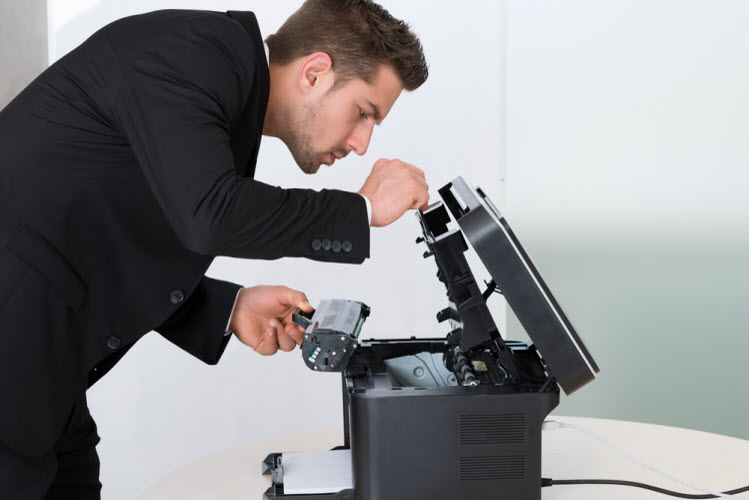
Quick answer: To fix most printer problems, first restart your printer and computer, then check for paper jams, empty or unseated cartridges, and error messages on the printer’s display. Next, print a test page. If it prints, the problem is likely your driver, print queue or connection. If it doesn’t, clean the printhead or check the printer hardware.
Few things lead to frustration quicker than when you need to print something in a pinch, and your printer doesn’t want to cooperate (and it won’t tell you why either!) While streaky lines across your images or faded text is one hassle, dealing with a printer that won’t even acknowledge you exist is another. Whether you’re getting an error message that doesn’t sync up with reality or your printer is giving you the silent treatment, knowing where to start when your printer won’t print can relieve some of that frustration.
Specific troubleshooting solutions will vary depending on your printer model, but once you understand some common issues, you can quickly search and find fixes specific to your unit. Manufacturers offer online resources to help you work through your most troubling printer issues and we’ve got some basic tips covered right here.
- Paper Jams and Ghost Jams
- Printer Driver Problems
- How to Print a Test Page
- Stuck Print Queue
- Wi-Fi Connection Problems
- Unable to Print From a Phone or Tablet
- Clogged Printhead
- “Non-Genuine” Cartridge Message
- New Cartridge Not Working
- Replace Cartridge / Low Ink Message
- Cable and Memory Problems
- Slow Printer Speed
- Printer Won’t Print

1. Paper Jams and Ghost Jams
If your printer says you have a paper jam, there are a couple of potential culprits. First, make sure the paper is properly aligned in the paper tray. If your paper is askew even a little bit, it can quickly turn into a jam. Usually, removing the paper from the unit and lining it up better to the feeding elements will clear up the problem. Paper trays are designed to hold a specific paper capacity. For some, it could be just 100 sheets, while others can hold an entire ream. Check your printer’s user guide for the recommended paper capacity, since an overstuffed paper tray can instantly flag the paper jam warning in your machine. You should also make sure the paper or media type setting on the printer menu matches your current print job. Printers include settings for many different paper types like card stock, photo paper or presentation paper. Thicker paper can cause a paper jam if the settings are off and a quick change of the paper type can resolve your paper jam message right away.
Pickup rollers are the rollers that pick up the paper from the tray and feed it to the printer. These parts can also cause jams after repeated use and eventually may need to be cleaned or replaced.
When your printer says there’s a paper jam and there isn’t, it’s called a ghost jam. The most common cause is a small scrap of paper left behind from an earlier jam, stuck in a roller, gear or sensor where you can’t easily see it. To clear a ghost jam:
- Turn off and unplug the printer.
- Remove the paper tray and open every access door, including the rear panel or duplexer if your printer has one.
- Use a flashlight to look for torn scraps of paper around the rollers and gears, and gently remove any you find.
- Check that the rollers turn freely and that nothing is blocking the paper path.
- Close everything up, plug the printer back in and turn it on to reset the sensors.
If the jam message keeps coming back, check your printer manufacturer’s support page for model-specific steps.
2. Printer Driver Problems
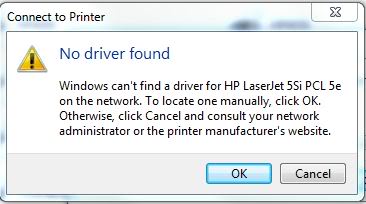
Hardware isn’t always to blame. Your printer driver acts as the translator between your computer and your printer. Like other software, drivers can go out of date or lose compatibility with your operating system after an update. If your printer isn’t responding to basic commands or is constantly crashing, a driver update may fix the issue right away. You could also have the wrong driver installed for your printer. Uninstalling the driver you have, then replacing it with an up-to-date version, will often get your printer and computer talking again. To find an updated version of your printer driver, visit the support page of your printer manufacturer and type in your printer model number. Then follow the steps on the page to download the most up-to-date version. We’ve included links to the most popular printer brand support pages below.
- HP Printer Drivers & Support
- Epson Printer Drivers & Support
- Brother Printer Drivers & Support
- Canon Printer Drivers & Support
- Lexmark Printer Drivers & Support
- Xerox Printer Drivers & Support
How to add a printer in Windows
If you’re connecting a new printer and plan to print over Wi-Fi, you may be able to print right away without downloading the printer software, since Windows works with most new printers out of the box.
- Windows 11: Go to Settings > Bluetooth & devices > Printers & scanners > Add device, then select your printer.
- Windows 10: Go to Settings > Devices > Printers & scanners > Add a printer or scanner, then select your printer.
If you plan to use this printer regularly, set it as your default printer and print a test page to check print quality.

3. How to Print a Test Page
If you are having trouble diagnosing your printer issue, printing a test page or printer status report can help narrow down what the problem is. If the test page prints successfully, your issue is likely the printer driver, printer software or connection. If it doesn’t print properly, there is likely an issue with the printer itself. For a full walkthrough, see our guide on how to print a test page.
How to print a test page in Windows 11
Open Settings > Bluetooth & devices > Printers & scanners, then select your printer from the list. Click Printer properties and select Print Test Page. This sends a diagnostic page to your printer so you can verify that your connection and hardware are working.
How to print a test page in Windows 10
Go to Settings > Devices > Printers & scanners. Then select your printer and select Manage > Print a test page.
4. Stuck Print Queue
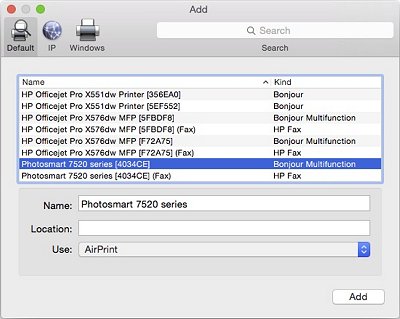
When your print job finishes, your queue is supposed to clear itself automatically. That doesn’t always work out as planned, especially when some print jobs are put on hold, postponed or stopped due to connection issues. A single stuck print job can block everything behind it, and it often won’t go away when you click delete. Selecting print several times over only adds more jobs to the pile. Here’s how to clear a stuck queue in Windows:
- Turn your printer off.
- Save the document you want to print, since clearing the queue erases any pending jobs.
- Search “Services” in the Windows search bar and open it.
- Scroll down to “Print Spooler,” right-click it and select Stop.
- Open File Explorer and go to C:\Windows\System32\spool\PRINTERS
- Delete all of the files in that folder.
- Go back to Services, right-click “Print Spooler” and select Start.
- Turn your printer back on and print your document.
If your print queue keeps freezing, HP users can run HP’s free Print and Scan Doctor, which automatically troubleshoots common issues. You can also uninstall and reinstall your printer driver, since an older or corrupted driver can stop print jobs from processing.
5. Wi-Fi Connection Problems
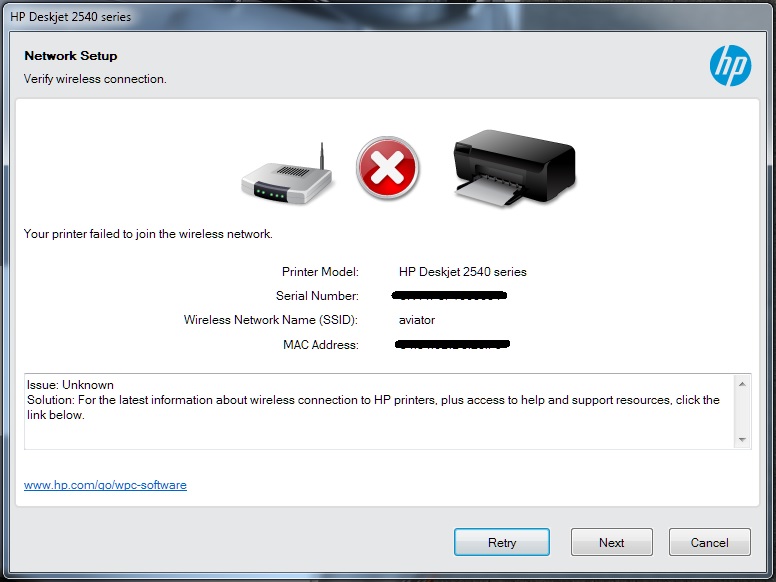
Wireless printing is convenient until the connection drops, and because you can’t see the connection, it can be tough to diagnose. If your printer was printing wirelessly and then stopped, restart your printer, computer and router to see if they reconnect. If they don’t, here are some common questions to ask:
- Is your printer connected to your network? Print a wireless network test report from your printer’s control panel (on some HP models, you can press the wireless button). The report shows whether your printer is connected and the network name (SSID) it’s using.
- Is your computer on the same network? Your computer or phone must be on the same Wi-Fi network as your printer. If you have a separate guest network or a 5 GHz network, make sure both devices are on the same one.
- Did anything on your computer change recently? Updates to your security software, firewall or operating system can interrupt the connection. You may need to reconnect to the network, allow the printer through your firewall or install an updated driver.
- Did you replace your router? A new router usually means a new network name and password, so you’ll need to reconnect your printer to the new network.
How to connect your HP printer to Wi-Fi
Since there are many HP printers, it’s hard to list a generic set of instructions that will work for all models. As a rule of thumb, when trying to connect your HP printer to your wireless network, look for this icon:

If your printer has this icon on a button, press down that button until the blue light next to the wireless icon blinks.
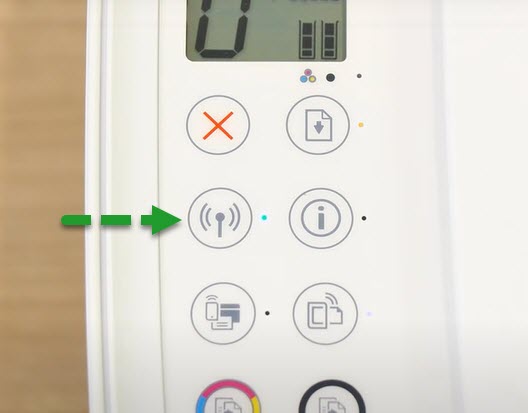
If you don’t see this icon as a button on your printer’s control panel, go to your printer’s display and look for the wireless symbol.
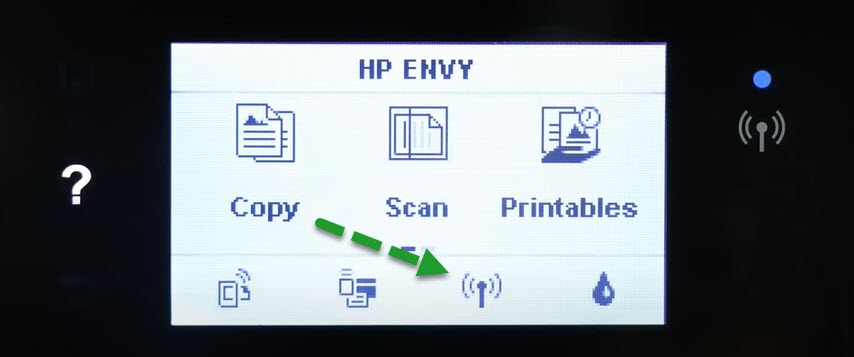
Press this icon on your display and follow the steps to set up your wireless settings. If the Wireless Setup Wizard doesn’t work, go to the Wireless Settings menu again and select “Wi-Fi Protected Setup.” Then touch “Push Button,” and then “Start.” Next, go to your router and press the WPS button for 3 seconds until the wireless light blinks. Check in a few minutes to see if your printer is connected. You can also set up your printer’s Wi-Fi from the HP Smart app.
6. Unable to Print From a Phone or Tablet
Printing from your phone or tablet depends on a working Wi-Fi connection, so start with the Wi-Fi steps above. Your phone and printer need to be on the same network.
Printing from an iPhone or iPad (AirPrint)
Most wireless printers from major brands support Apple AirPrint, so you can print without installing anything. Open the document or photo, tap the Share icon, select Print, then choose your printer. If your printer doesn’t appear, confirm that it supports AirPrint in your user guide, and restart both your phone and your printer.
Printing from an Android phone or tablet
Android includes a built-in print service that finds most wireless printers on your network. Open the document or photo, tap the menu (usually three dots), then tap Print and choose your printer. If your printer doesn’t appear, install your printer brand’s print service or app from the Google Play Store, or the Mopria Print Service, which works with printers from most major brands.
Using your printer brand’s app
Most printer brands offer a free app that handles setup, printing, scanning and troubleshooting, such as HP Smart, Epson Smart Panel, Canon PRINT and Brother Mobile Connect. If you’re having trouble connecting, these apps can also walk you through reconnecting your printer to Wi-Fi.

7. Clogged Printhead
If you don’t use your printer often, ink in your printhead can dry and lead to clogging. When you start to see lines, streaks or bands on your printouts, or if some parts of your document print lighter than others, it’s probably time to clean your printhead.
A clogged printhead may trigger the change cartridge signal on your printer, or could simply prevent ink from making its way onto the page. Unclogging your printhead can be messy and tedious, but maintaining your printer to prevent clogs is easy. A popular way to address a clogged printhead is the paper towel method:
Paper towel method
If your printer uses only two cartridges (black and tri-color), your printer uses ink cartridges with an integrated printhead.
Only printers that use ink cartridges with an integrated printhead can use the paper towel method.
Some popular ink cartridges you can use the paper towel method on include HP 60, 61, 62, 63, 64, 65 and 67 ink cartridges, and Canon PG-243, CL-244, PG-245, CL-246, PG-260 and CL-261 ink cartridges.
Steps:
To do the paper towel method, you’ll need a warm, damp paper towel and a dry paper towel.
- Take the warm, damp paper towel and blot the cartridge with the printhead side down onto the towel. The printhead is located on the end of the cartridge where the ink comes out.
- Tap the cartridge down a few times. Slide the cartridge along the paper towel and repeat until you see solid lines of ink. If you’re doing this on a tri-color cartridge, repeat until you see all three colors on the paper towel.
- Be careful not to confuse the printhead with the gold or copper contacts. If you don’t see ink on the paper towel, you are probably blotting the wrong part of the cartridge.
- When you clearly see ink on the damp paper towel, hold the cartridge against the dry paper towel for 30 seconds to a minute. This wicks out any dried ink that may be preventing a quality print.
- Slide the cartridge back into the printer and run a test print.
- If print quality doesn’t improve, repeat the process once more. If it still doesn’t help, move on to a printhead cleaning.
Printhead cleaning from the printer display screen
If you have a printer that uses individual color cartridges, like the Epson 702XL series, the printhead is built into the printer.
The most common causes of a clogged printhead are dust particles, air bubbles and dried ink. Running a printhead cleaning from your printer’s maintenance menu will clear the nozzles of dried ink. Print a test page to see if the clog is gone, and run a second cleaning if needed. If that doesn’t clear up the issue, stop running cleanings, since they use a lot of ink and repeated cycles rarely do better than the first two. We walk you through the process on an Epson WorkForce Pro WF-3820 printer in the video below. The steps are similar on most printers, so consult your user guide for the cleaning process on your model.
You can find even more printhead cleaning tips in our brand-specific guides:
8. “Non-Genuine” Cartridge Message
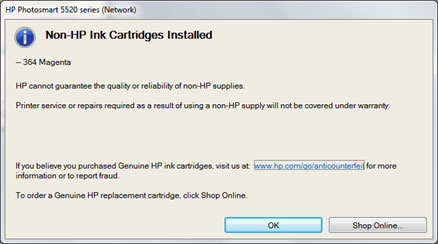
Some printers, especially HP models, display a message saying a cartridge is “non-genuine,” “used” or “counterfeit”* when they detect a cartridge from another brand. In most cases, you can select OK or Continue and keep printing. If the printer won’t accept the cartridge, remove it, gently wipe the gold contact chip with a lint-free cloth, reinstall it and restart the printer. For step-by-step help, see our guide on how to clear a non-genuine message. If the message started after a printer firmware update, read our guide on how to deal with HP firmware updates.
*A counterfeit cartridge is made to look like a name-brand original. Compatible and remanufactured cartridges sold in their own packaging are not counterfeit.
9. New Cartridge Not Working
Every once in a while, a new cartridge may give you trouble. If you recently installed a cartridge and an error message appears on your printer’s display, try these steps:
- Reinstall the old cartridge. If you still have your old cartridge, put it back in. Once the printer recognizes it, remove it and install the new cartridge again. A quick swap can often convince your printer to accept the new cartridge.
- Remove all protective seals. New cartridges come sealed at the ink nozzle to keep the ink from drying out. Depending on the brand, this is a tape pull tab or a plastic clip. If the seal is still on, the printer may recognize the cartridge but no ink will flow.
- Check the vent. Many HP cartridges have a vent on top that lets ink flow smoothly. Make sure any orange pull tab is removed and that the vent isn’t blocked.
- Run a cleaning cycle. If your printer has been sitting unused, ink in the printhead can dry up. A cleaning cycle can clear the blockage and get ink flowing again.
10. Replace Cartridge / Low Ink Message
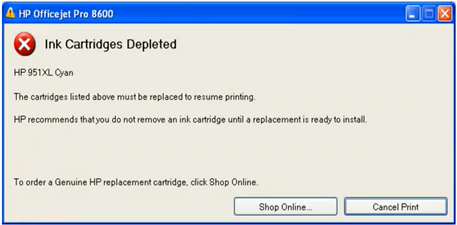
Sometimes your printer will say you need to replace a cartridge or that ink is low, even when you know the cartridge is full. For example, you may have just installed a fresh compatible cartridge, but the printer still thinks the old one is in place. Here’s what to try:
- Reseat the cartridge. Remove the cartridge, wipe the gold contacts with a lint-free cloth, reinstall it firmly and restart the printer.
- Keep printing. Low ink warnings are estimates, and many printers let you select OK or Continue and keep printing until the ink actually runs out.
- Turn off low ink alerts. Most printer software lets you turn off low ink warnings. Open your printer’s software or app, look for a Settings, Tools or Preferences menu, and find the option for ink level alerts. The exact steps vary by model, so check your user guide.
11. Cable and Memory Problems
Check your cables. The problem may not be your computer or your printer at all. USB and power cables can wear out over time, and there’s no warning light when they do. Try a different cable to rule it out.
Printer memory is full. Printers store print jobs in memory. If you send a very large file, like a long PDF with lots of high-resolution images, the printer can slow to a crawl or stop. Try printing fewer pages at a time, or lower the print resolution.
12. Slow Printer Speed
A slow printer can quickly put the brakes on any important print job. Slow prints are usually caused by out-of-date software or a spotty wireless connection. For a quick fix, make sure your printer driver and printer firmware are up to date. You can usually check for updates from your printer’s display screen, or go to your printer’s support page to download the latest version. If you suspect Wi-Fi is the issue, move your printer closer to the router. We also recommend checking the print quality settings on your printer menu. A document printing on the “Best” setting will take much longer than “Draft” mode, which also uses less ink. As a general rule, the simpler the print settings, the faster your printer will print.
13. Printer Won’t Print
There are a number of reasons your printer might not be printing, even if you just installed a fresh cartridge. Work through this list to rule out the possibilities:
- Print a test page to see which colors are missing. If any colors are missing, you might have a clogged printhead. If it’s only black, see our guide on what to do when your printer won’t print black.
- Make sure the new cartridge is installed correctly and the protective tape is removed.
- Clear the print queue.
- Do a hard reset: turn off your printer, unplug it for a few minutes, then plug it back in. If that doesn’t work, turn off your printer and computer, then start both back up.
- Uninstall and reinstall your printer driver.
FAQ
Why is my printer not printing?
Start with the basics: make sure the printer is on, has paper, has no jams and shows no error messages. Then clear the print queue, restart your printer and computer, and print a test page. If the test page prints, update or reinstall your printer driver. If it’s a wireless printer, confirm it’s connected to the same Wi-Fi network as your computer.
How do I clear a paper jam error when there’s no paper jammed?
A paper jam message with no visible jam is usually caused by a small scrap of paper stuck in a roller, gear or sensor. Turn off and unplug the printer, open every tray and door, use a flashlight to find and remove any scraps, then plug the printer back in to reset the sensors.
Why does my printer say non-genuine cartridge?
Some printers, especially HP models, show a non-genuine message when they detect a cartridge from another brand. In most cases, you can select OK or Continue and keep printing. If the printer won’t accept the cartridge, wipe the gold contacts with a lint-free cloth, reinstall the cartridge and restart the printer.
Why does my printer say low ink after I replaced the cartridge?
The printer may not have recognized the new cartridge yet. Remove it, wipe the gold contacts with a lint-free cloth, reinstall it firmly and restart the printer. Low ink warnings are estimates, so many printers also let you select OK or Continue and keep printing.
How do I clear a stuck print queue?
In Windows, open Services, stop the Print Spooler, delete the files in C:\Windows\System32\spool\PRINTERS, then start the Print Spooler again. Turn your printer back on and resend your document.
If all else fails…
If you’ve worked through each of these options, there’s one more possibility: your printer might be on its last legs. Like all machines, printers wear down over time, and at some point you’ll need to decide between repairing and replacing your unit. If replacement is the better option, choose a model that fits how much and what you print.
However, before you head to the store, always try shutting off your printer and computer and turning them back on. It’s surprising how many problems can be solved this way. Good luck!



[…] company’s article started by noting that “specific troubleshooting solutions will vary depending on your printer […]
I ran an update for version 10 and today when I try to print it won’t print it goes to screen where i have to save . This I have done but it still won’t print.
It might happen due to printer software compatibility issue with the latest version 10 update, add printer updated driver In your system a try It once, some time It starts working properly by updating printer driver software
I have used LD cartridges for the bes part of a year on my Epson XP830. Today My printer says they are not compatible and will not print. Suggestions.
Hi Rick,
I am sorry you are having trouble with your Epson 410XL cartridges. You might try wiping the contact chip on the bottom of the cartridge with a lint free cloth or Q-tip. Sometimes finger print residue or dust can get on that chip and cause a recognition error. If you still have trouble, please reach out to our customer service team here and we would be happy to send out a replacement cartridge to you. Or team is available Monday – Saturday, 6:00am-6:00pm PST at 888-321-2552. Hope this helps!
My printer is not working correctly. I feel that it is due to the printer settings. How can I find out how they should be set. When I print a list of items, 1 page, it prints on the bottom of the first page the first line of the list and prints on the second page 1 item.. Nothing printed on the in betwen items on the list.??? HELP
My HP Envy 4500 keeps showing “Now printing alignment page” but nothing prints. I’ve changed the USB cord twice now and have even bought a new cord. I’ve even unplugged the printer, tried to find an answer on the HP web page, and finally, shut down my computer and then turned it back on. What do I do now? Can you help? Thanks!
Magenta ink stopped flowing; I tried cleaning the cartridge, unplugging the HP Officejet 8040 and cleaning the black ink LD cartridge. Now the Cyan isn’t producing any ink, according to the HP Print Quality Diognostic. What do I do now?
There are quite a few variables involved, like how often do you print? Are the cartridges full or not empty? Have you tried cleaning the printhead? Here’s an article that might give you some tips on how to clean the printhead. https://www.ldproducts.com/blog/how-to-clean-an-epson-printhead/ The article might be about cleaning an Epson printhead but the process may be theoretically the same for other brands.
My Laptop does not send a signal to print when I click on the printer icon of the LP. .( it did before ) How can I correct the problem ?
Good afternoon.
My printer leaves a long black line down the right side of the page. This doesn’t happen when I print from my computer, nor when a page is placed on the glass, but only when I use the feed area. Can you help me?
Hi Marilyn,
If this happens whenever you use the automatic document feeder to scan or copy something, try cleaning the ADF scanner glass strip. This same sensor is used whenever you scan something from the flatbed AND when you scan with the feeder.
Good luck!
Anna
We seem to be having a problem with pop ups that are blocking the printer icon? We are not able to print as there is no print icon or word available to print after we hit print. We see the page that is ready but not able to continue the process.
Thank you
Carol Jane Altimiari
I get a printer error message, it says turn power off and then back on again. I do this and the same error message keeps popping up and my printer won’t connect. I have the Artisan 730.
I have an Epson Stylus NX420 Series. The printer will copy, but fails to print. i have new ink cartridges in place. The only comment that I see when I try to print refers to the filter. Is it time to replace my printer?
Have you tried restarting your printer or reinstalling your printer driver? Try doing one or both of these fixes and let me know if your printer still won’t work.
I have an HPOfficejet 6700 that will not scan or fax. Is there anything that I can do before I replace it?
My HP Photosmart 7525 on Windows 10 stopped printing yellow. I replaced that cartridge with an LD and then with HP with no success with either unit. I then replaced the print head (HP OEM), but the printer doesn’t recognize it. I’ve updated the driver, uninstalled/reinstalled — pretty much exhausted my skill set at this point. Any insight? Thank you ~
Good Morning , i have a challenge , any time i change the ink in my desk jet printer the software on my system will disappear, i will have to re-install it again , how do i get a permanent solution to this issue.
I have HP Laser jet 300 MFP . Eversince i turn it on. machine stop working and flashed Error 49.
Please let me know what it means and how do I fix it?
Thank you.
Berna
Here’s what I can find on Error 49 errors on LaserJet models: https://support.hp.com/us-en/document/c05026822. I hope HP’s solution helps get your printer working again!
On your computer find the device manager settings in your control panel.
Scroll to the USB controller’s area and click the plus symbol or arrow to open the list.
Canon mg 5750 prints one paragraph then rejects the sheet,please help Mr Albert Anderson EH114LQ [email protected]
Hi sorry to bother but I don’t know who els to turn to so my printer is stuck there’s no paper jam or anything, I refilled my cartridge’s and put them back like I always do but this time it just stopped.. nothing is moving inside there was no sound or struggling can you help please
Thank you
Hi Burnadette! Have you tried resetting your printer, as in re-installing the printer driver?
Canon printer printing USER DATA LIST CONTINUOUSLY.. I don’t know how to stop.
my printer error show waste ink paid how to fix problum ..
you can go online and buy a replacement waste ink pad and the one time key. it is not a very bad job to replace, you can find video on how to do it. i have two epson xp-800 series, i have over time replaced the waste ink pad in both of them
My epson xp 830 has developed 2 vertical lines of dots on the printed page. They are about 1/4 inch long, and are about 2 and 3/4 inch from other side of the page. Wger din the machine kind I find rollers that would produce these dots?
When I try to print anything on my HP officejet 5740, it will tell me there is an error in printing, but won’t tell me why. I’ve tried troubleshoot on the printer, but it says it can’t find anything wrong. I’ve turned the printer on and off, I’ve turned my computer on and off, I’ve tried connecting wirelessly and through the USB port, but nothing has worked so far. I’ve printed on it before, but it just stooped working one day. Is there any way to fix this?
My epson Expression printer XP 635 has run out of photo black ink but I have never printed photos on my computer. could my settings on the printer be wrong?
My Printer won’t work. I want to print a Document, it appears in queue and suddenly deisappears without printing. please help ASAP.
my HP 4500 will not print. It seems to move the print cartridge but then makes a really loud clicklng noise and nothing moves. It says the ink cartridges are not properly installed but I know they are. Should I just trash it?
My HP office jet 4500 prints fine from under glass, or the feeder, but will not print from the computer. I am sure it is something I have done, but, I don’t know what it was. I need HELP.
My HP Officejet 5746 is not printing properly. When I print it only gives me the title at the top and maybe the box outlines. None of the text appears. It shows in the print preview.???
I just installed two new original HP ink cartridges on my HP all in one 309A and now I’m getting an error message that reads….Incompatible Printhead The printhead installed is not intended for use in this printer or is damaged. Can anyone help me resolve this issue? I have unplugged from printer and wall and waited 60 seconds and plugged back in wall then back of printer and waited for it to turn on and the same issue keeps happening. I have removed cartridges and removed printhead and cleaned and reinstalled and replaced cartridges and no improvement. Same message.
Have you tried reinstalling the printer driver?
Hello:
I have a HP 5252 printer. Changed colored and black ink, ran that paper test etc. Looks good. Began printing a couple things and the ink smears on both the left and right margins. Any idea what I can do to fix it? Haven’t had this problem before.
Thanks so much for help!
Thank you for sharing this super useful article.My personal experience with printers has not been good, I must say. I have an HP Officejet printer 5746 that was not printing properly and I have tried restarting the printer and some basic troubleshooting steps to get rid of the problem but nothing seems to get it up and running. Then I came across ‘GadgetSick’ for the resolution and must say got it done in no time. And since then I haven’t had this problem yet.
PRINTER PRINTS BLOTTED INK ONLY. NO LETTERS PRINTED
It sounds like you might need to clean your printhead or the nozzles at the least. Have you tried this yet?
I have HP8610. My wife tried to stop a small print job by opening the paper tray. Now the printer error say that printhead s not found. I have removed it and reinstalled it, but same error and it will not let me realign it because theoretically it’s not there. Any suggestions?
(Epson Ink pad is at the end of its service life error problem.) what other remedy should i do for this? Thanks for answering 🙂
You can find Epson ink pad replacements but those are costly. Some alternatives are you can use a dish sponge or reuse your old one by soaking it in hot water first, squeezing it, then drying it. Make sure the pad is completely dry before putting it back to your printer.
I hooked up my printer with a new laptop, I printed a test page, all the colors are correct. but if I print a photo, the blue color is missing. it prints pink instead. I can not figure out what is wrong
The printer still works perfectly with my old laptop. it prints in full color. it just refuses to work with the new laptop. will you please drop me a hint what is possibly wrong?
have you tried reinstalling the printer driver on your new laptop?
I have a digital printer called KONICA MINOLTA, BIZHUB C650, when I switch on power, it loads and after a while it goes off.
There are a few things I would check off. Have you tried checking your connections if everything’s plugged in properly. There are certain lights to check to make sure everything’s working as it should, perhaps something wrong with the fuse. I would also check if your printer’s memory is full and would need to be cleared? Do you still have your printer manual? Here’s a digital copy just in case – https://www.recono.de/media/pdf/Kopierer/Konica%20Minolta/Konica%20Minolta%20bizhub%20C650-handbuch-englisch.pdf. Let me know how it goes.
Excellent article which solved my problem, but under the heading of “Loaded Queue”, I think you forgot to mention that the print spooler service needs to be restarted before you can print again.
Thanks for your input, Garth! I’ll update the article to reflect this step.
The problems you are talking about of printer it occurs just because of the software update of the system. If the system’s driver not properly updated then this kind of problem occurs. And for this problem, you need to solve it as soon as possible otherwise the absence of driver on your device really a big blunder for your system.
My Pixma MG 7550 works perfectly. This computer cannot manage to send the whole message to the printer. As a result, the colour is alright but both blacks don’t print. If I copy and print, there is no problem, it is purely the instruction that is at fault. The other computer doesn’t have this problem.
Are the drivers on both computers up to date?
I just bought a wireless printer a hp jet desk 2036, I have spent hours trying following directions as a setting printer can not do it
why they make this so difficult for someone like me no knowledge of this stuff. my desktop does not find the printer what to do
I have a HP Laser Pro mfp m281fdw. I have never had a problem printing from my Dell laptop. Now, when I go to print anything, the print option disappears.
Have you tried reinstalling the printer driver?
When I sent things to my Brother’s printer, they seem to get stuck somewhere and will print at or around 11:00 pm in the evening, like there is an assigned time to print?
Do you by chance use the Task Scheduler app / program?
I have a HP M127-M128PCLmS Printer and it has an error message of “scanner error 13” and my printer flatbed does not light up when I a open the door. Can this be fixed?
Thanks for any help.
MY HP OFFICEJET 4500 WILL PRINT OFF THE COMPUTER BUT WILL NOT SCAN.WHATS UP?
why is it that have have to press several times on the print icon on my desktop before it prints? and when it starts printing i have to print page per page it cant print all pages at once
My HP office jet 4500 prints fine from under glass, or the feeder, but will not print from the computer. I am sure it is something I have done, but, I don’t know what it was. I need HELP. in the nutshell this amazing printer also.
IO want to command my printer via PCL. I have windows 10, hp 4630 with HP driver. hen I send a code to the printer it processes the esc char as an unprintable character, I suspect the driver is the culprit, or perhaps the printer is incompatible with PCL.
I never got my Hp to work. I wish I could bring it back. it is terrible. zit never workeright.
my Epson L382 Printer does not print 4R water proof photo paper but printes A 4 papers. what could be the problem
am having the same problem
I recently bought an HP-ML-5510ND monochrome laser printer but it shows some error related to the print head, please give me a solution asap.
help I am trying to print photos from my HP pavilion but the ink on photo does not dry’
Its not my printer because I can print ok from HPCompaq,
What paper are you printing on?
You might be using a paper that cannot be used with inkjet printers only offset printers or are you printing the backside of photographic paper
I have a new Brother MFC J995DW; loaded software twice, plugged, unplugged, changed ports, etc. Machine does not print but ejects all the paper in the tray; then, calls for more paper. Any thoughts, suggestions?
Error code OXC4EB827F. What does that mean?
My printer, Brother DCP-T300 is stuck on the red light. I tried plugging/unplugging it. Still, nothing happens. Can someone help me what to do? 🙁
My printer is bought in mexico but can repair in united states? Because it is so hard to find the HP repair center in tijuana or ensenada area.
Hi Don, you will probably be able to repair your HP printer in the US since it is a North American region printer and the design / hardware should be similar to US HP printers.
my hp printer will not print a clear print, but if i send the same thing thru my phone, i get a clear and crisp copy. how can i fix this problem?
Hope you can help me. I did an update on my HP Envy 4523 and now it keeps saying…Service Station Stalled. It then tells me to press the OK button but it just keeps going back to the same message. I have tried unplugging etc etc to no avail….thank you.
Have you tried removing the cartridges and then putting them back in? I just want to rule out the possibility that it’s not triggered by the ink cartridges.
My HP Officejet Pro 8600 Plus printer will print the text of the document, but all of a sudden will not print any pictures or clip art in the document. Just started doing this yesterday.
Any suggestions?
Thanks!
Steve Crouch
314 623 7087 – cell/text
That’s odd that it just started happening without you changing anything. Are you using Microsoft Word to print the document? Try going to File > Options > Display and then make sure “Print Drawings Created in Word” is checked. I hope that works!
I have a HP Deskjet 930c.
Worked ok but now I have a new computer it will not print. Just see a red light bleeping. Seems they are incompatible.
Is there a solution to this? Any suggestions in SIMPLE English, please!
My computer details:
macOS High Sierra
Version 10.13.6
iMac Retina 4k
Memory 8GB 1867 MHz DDR3
Intel Iris Pro Graphics
Did you update your printer driver yet?
Here’s the driver for the MacOS 10.13 (High Sierra):
https://ftp.hp.com/pub/softlib/software12/HP_Quick_Start/osx/Applications/ASU/HPPrinterDrivers5.1.dmg
My printer is printing itself and printing file information. What should I do to stop?
Try reinstalling the printer driver. Hopefully that does it!
[…] surely can’t have a dysfunctional printer when you’re trying to print out important documents or test papers that are going to be used by […]
while i have given the print command for two sided printing, first half of the job gets printed and second side cannot be printed as I have not got the turn page prompter.
It seems like almost every one of my black cartridges require cleaning. I use my printer just about every day so I do not understand why this would clog up overnight., You are right. It does use a lot of ink and I should not have to throw away a cartridge that is over half full. Seems like it would be cheaper to buy the Epson black ink.
[…] Resources— PC Mag, Chron, HP, LD Products […]
the printer is not working cause. I change the color ink and my printer color light is still binging. I can’t print it HELP
I was captured when you discussed that slow printers can fastly put the brakes on any crucial print job. My friend told me that their commercial printer needs repair. I should advise him to hire an expert in commercial printer repair to ensure quality work.